

Appearance
Your first mirror
The first time takes about a minute: you plug the phone in, tell it to trust your computer, and click Mirror. After that, your phone opens on your computer whenever you want it.
1. Plug in the phone
Use a USB cable that carries data, because some cables only charge. Unlock the phone, then plug it into your computer.
- iPhone or iPad: the phone asks “Trust This Computer?” Tap Trust and enter your passcode.
- Android: the phone needs USB debugging turned on first. If you haven’t done that yet, Android walks you through it, and you only do it once. Then the phone asks “Allow USB debugging?” Tick Always allow from this computer and tap Allow.
The phone shows up in Aelin within a second or so. If a step is still missing, the phone’s card tells you what to do next, and ticks it off as soon as you’ve done it.
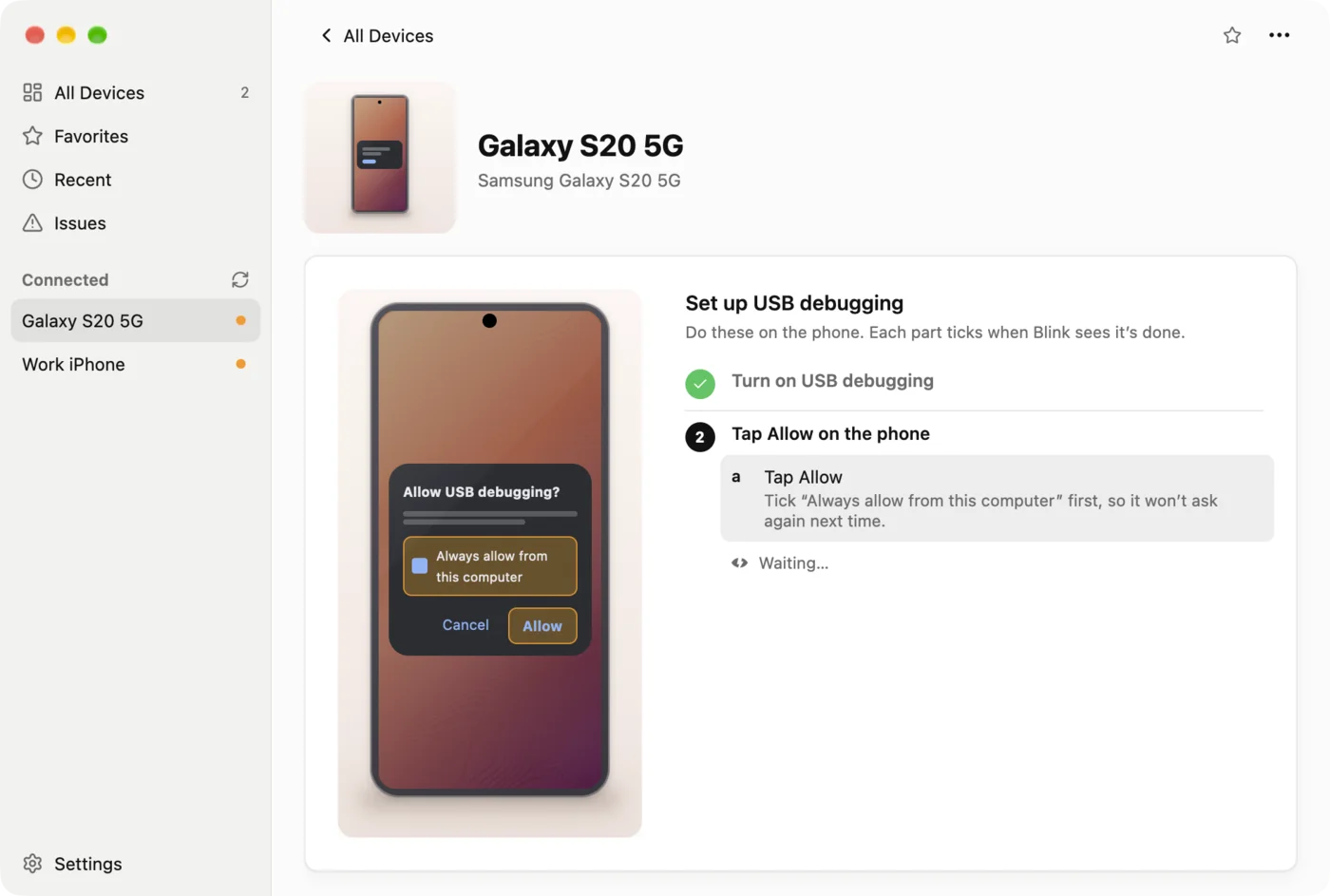
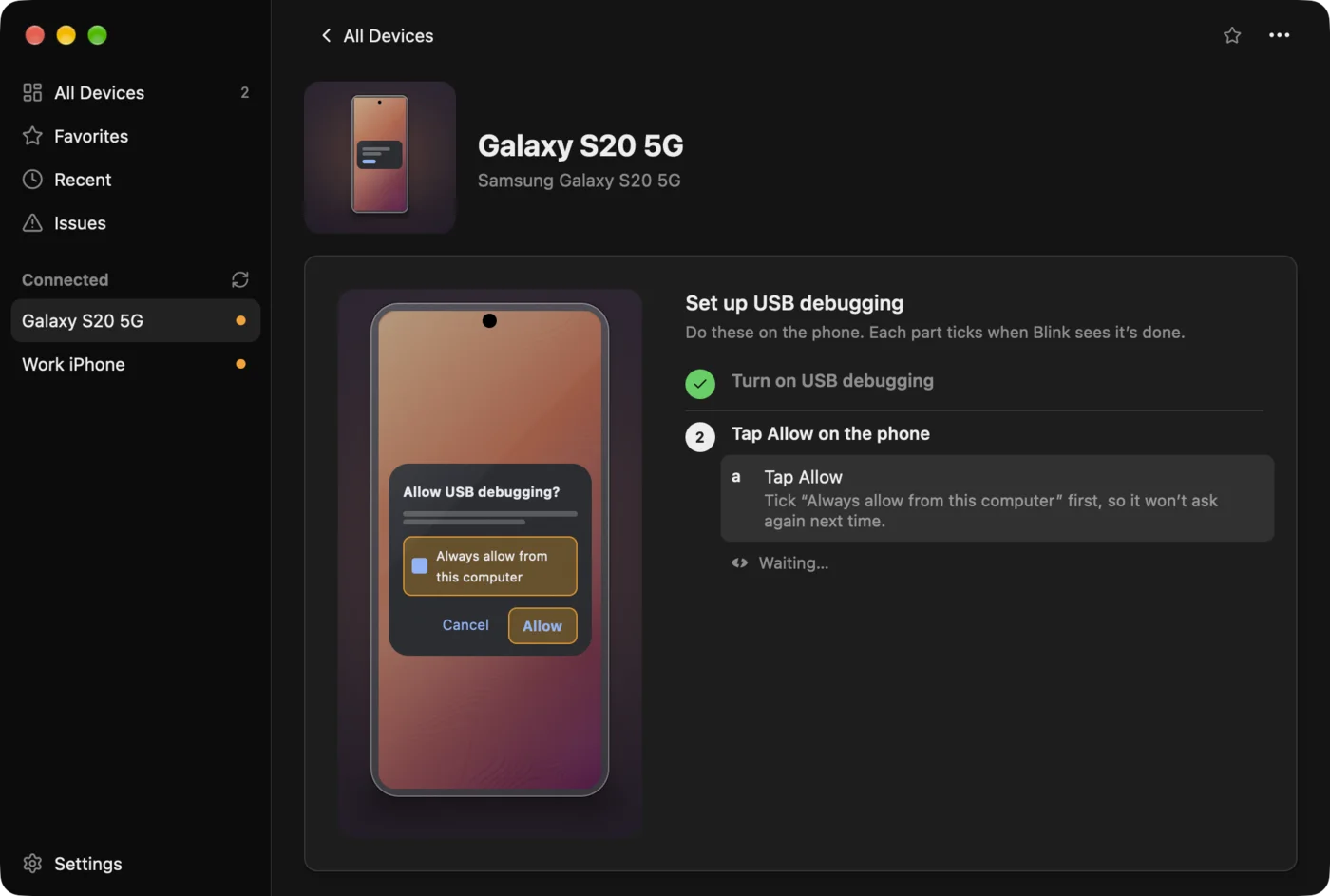
2. Click Mirror
Click Mirror on the phone’s card. A window opens in the shape of your phone, and the phone’s sound starts playing on your computer (on Android, that needs Android 11 or newer).
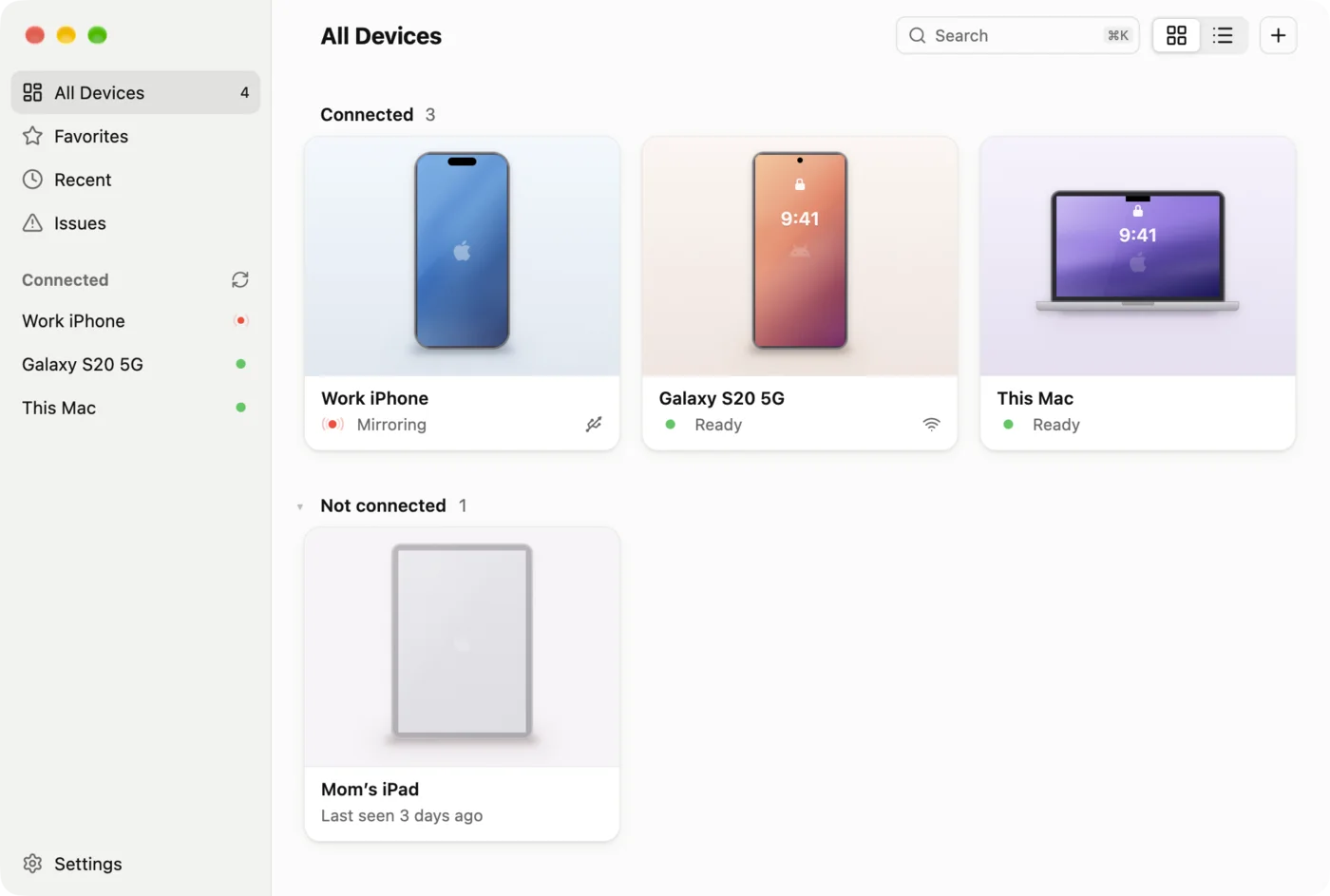
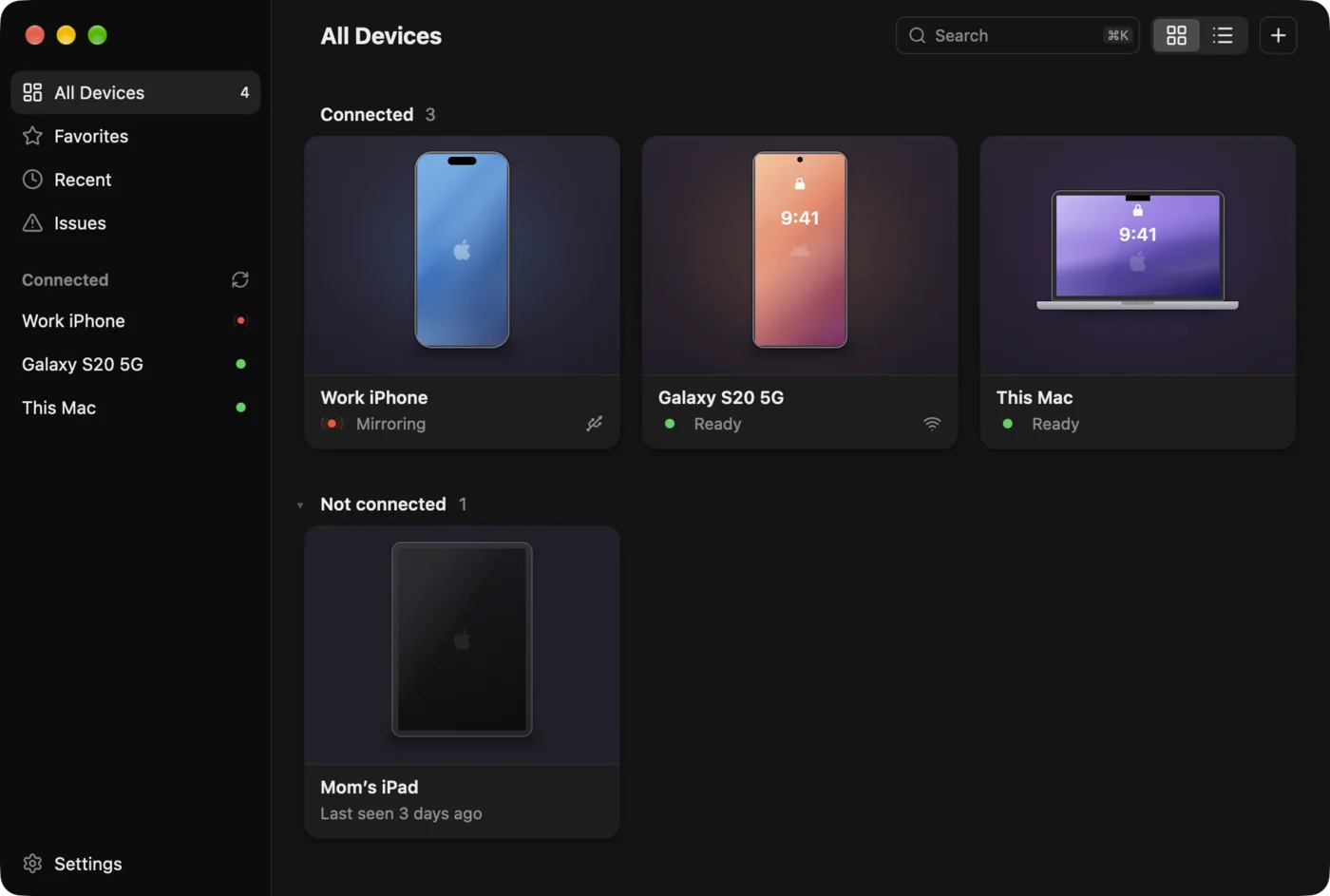
When you turn the phone sideways, the window turns with it. When you’re done, close the window: the phone stays connected, so it opens again straight away next time.
On a Mac, the first time you mirror an iPhone, macOS asks to let Aelin use the Camera. That’s just the name macOS gives to phone screens, and Aelin never turns on your Mac’s camera.
3. Use it
Now you can use the phone right from your computer: click to tap, drag to swipe, and type with your keyboard. Control has the rest, like the Home button and pasting text into the phone.
Doesn’t show up?
Fix a problem goes through the usual reasons, starting with the most common one.