

Appearance
Share with another computer
You can share a phone with another computer, yours or a friend’s, so it can be used from the next room or from the other side of the world. Nobody gets in unless you allow them, and everything between the two computers is encrypted end to end.
On the computer the phone is plugged into
- Open the phone’s page and click Share › Start.
- Under What they can do, choose Watch if they should only see it, or Watch and control if they should be able to use it too.
- Under When someone asks to join, keep Ask me first so you approve every new computer, or choose Allow automatically for computers you trust.
- Send the code to the other person, or click Copy code. There’s a QR code too, if that’s easier.
On the other computer
- Open Aelin and click + (Add a device).
- Under From somewhere else, paste the code or link and click Add. If you got a QR code, use Open QR Image… instead.
- The phone shows up in the sidebar under the first computer’s name. Click Mirror and it opens just like a phone on your own cable.
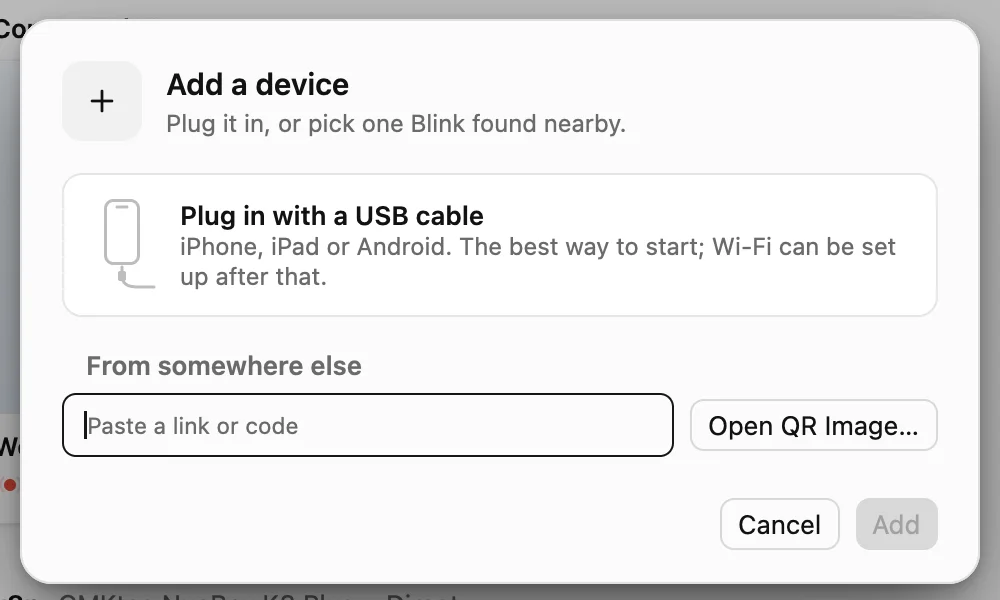
If both computers are on the same network, you may not even need the code: the phone can show up by itself under Nearby.
You decide who gets in
With Ask me first, the computer with the phone asks you before anyone joins, for example “Home PC wants to use your Galaxy S20 5G”, with Allow and Don’t Allow. The share sheet always shows who is using the phone right now. Disconnect ends their session, and Remove takes their access away for good.
Direct or relayed
The phone’s page on the viewing computer tells you how the stream reaches it:
- Direct means it goes straight between the two computers. This gives the best picture, and it’s what Aelin always tries first, on the same network and over the internet.
- Relayed means no direct path was possible, so the stream goes through a public relay server instead. The relay can’t see your picture, sound or typing, because they stay encrypted between your two computers, but expect a softer picture because the detour is slower.
If you’d rather never use a relay, go to Settings › Network and turn off Use a relay when a direct connection isn’t possible. Aelin will then connect directly or not at all. Privacy explains the rest.
Picture quality
Aelin picks the best picture your connection can carry and keeps adjusting it as the connection changes (Auto). When the connection is too slow, the window says Slow connection. You can also pick a quality yourself from … › Quality in the mirror window.
Good to know
- Both computers need the same version of Aelin.
- You can share This Mac, This PC or This computer the same way, and the other person sees and hears your whole screen, so they can help you as if they were sitting next to you.