

Appearance
This computer’s screen
Aelin lists your own screen as a device (This Mac, This PC or This computer), so you can record it or share it with another computer.
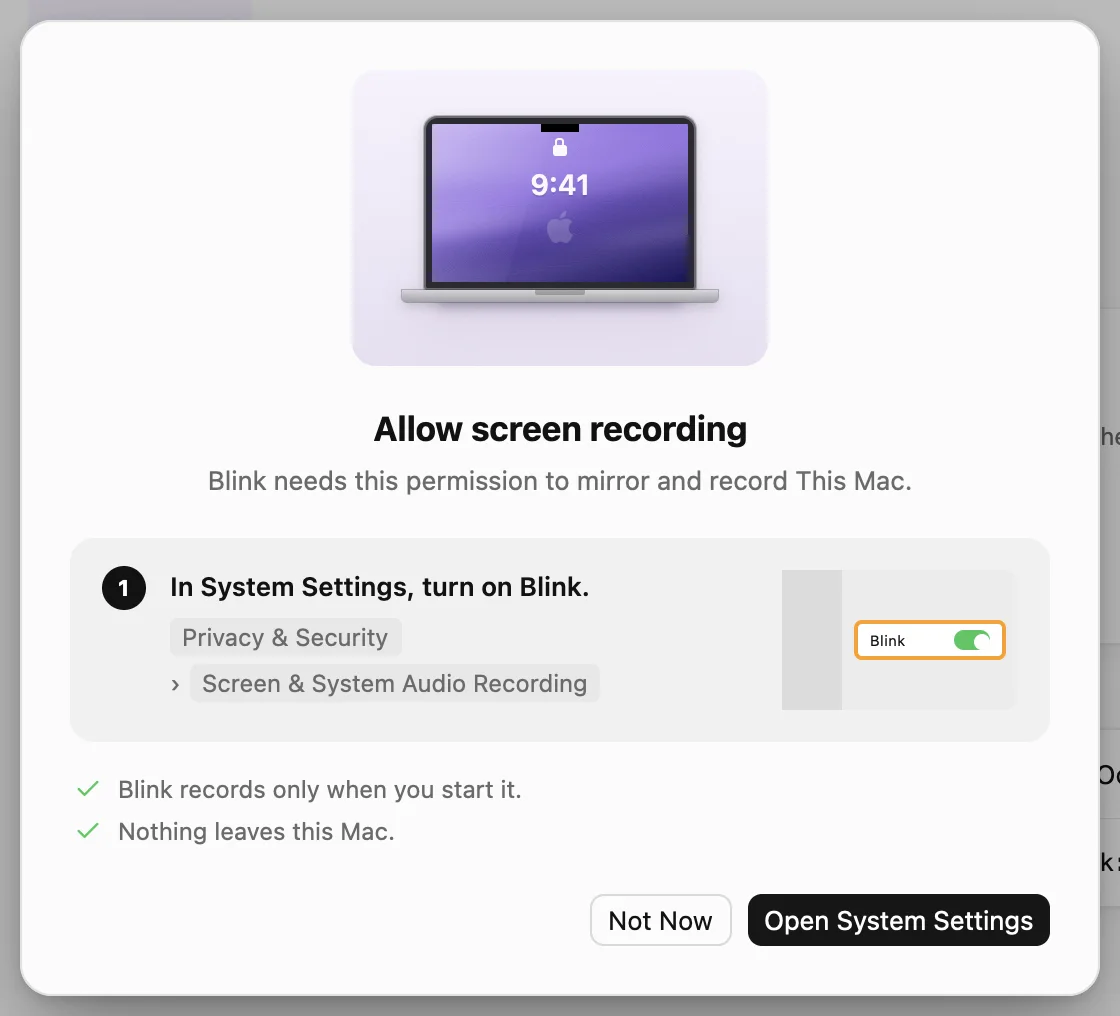
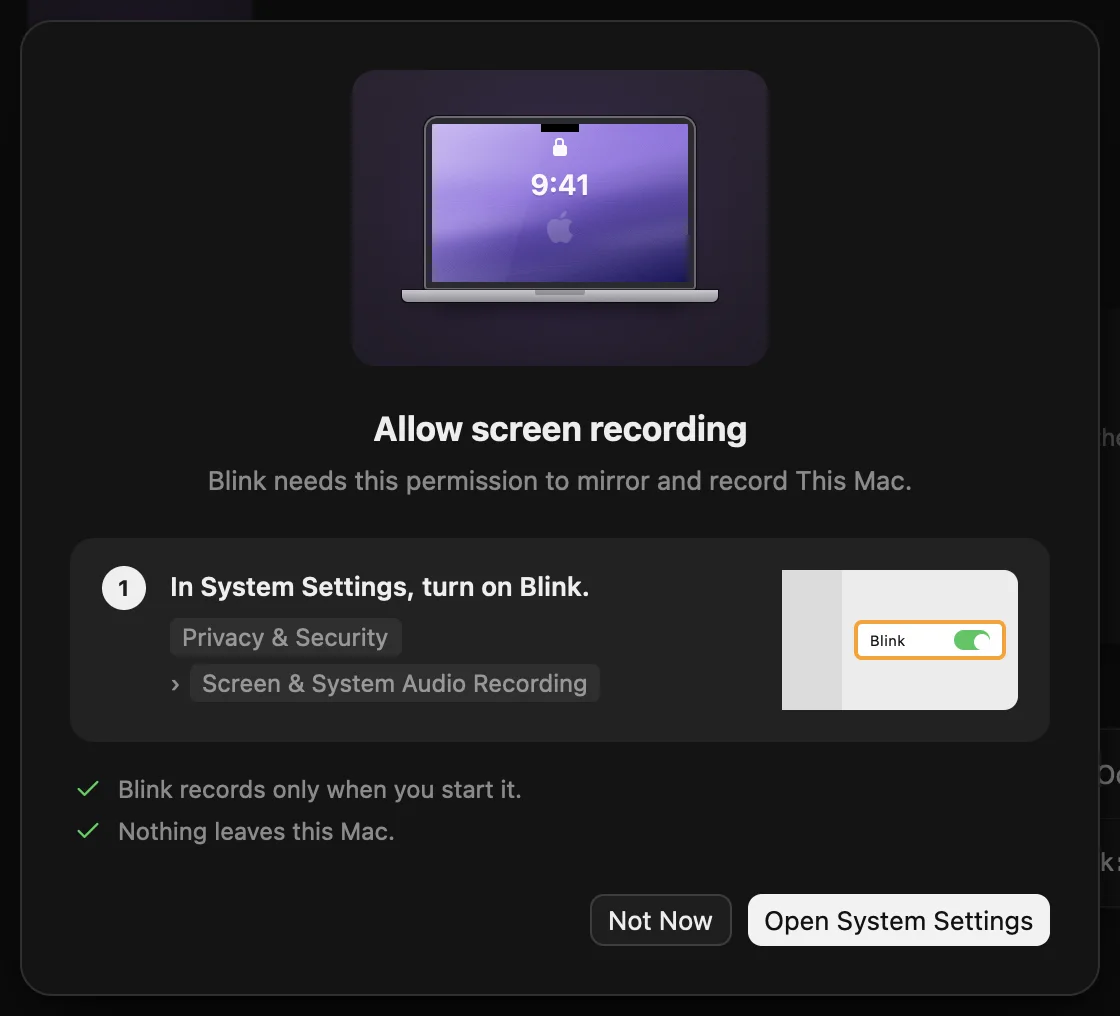
Allow screen sharing, once
Aelin asks only the first time you click Mirror or Record on your screen, never before.
- Aelin first shows a short sheet. Click Open System Settings.
- In Privacy & Security › Screen & System Audio Recording, turn on Aelin.
Aelin records only when you start it, and nothing leaves your Mac unless you share it.
Sound
- Recording your screen includes your computer’s sound.
- Mirroring your own screen doesn’t play its sound back, because you would hear an echo.
- Sharing your screen with another computer sends its sound too.
Let another computer control yours
When you share your screen with someone who can control it, your computer may ask you to allow that:
- Mac: macOS asks you to allow Accessibility for Aelin, the first time only.
- Linux: GNOME asks once. Turn on Allow Remote Interaction.
- Windows: you don’t need to allow anything. Windows doesn’t let anyone control its lock screen or administrator prompts from afar.