

Appearance
Unlock
When you save a phone’s passcode once, Aelin can wake and unlock the phone for you, even when you use it from another computer.
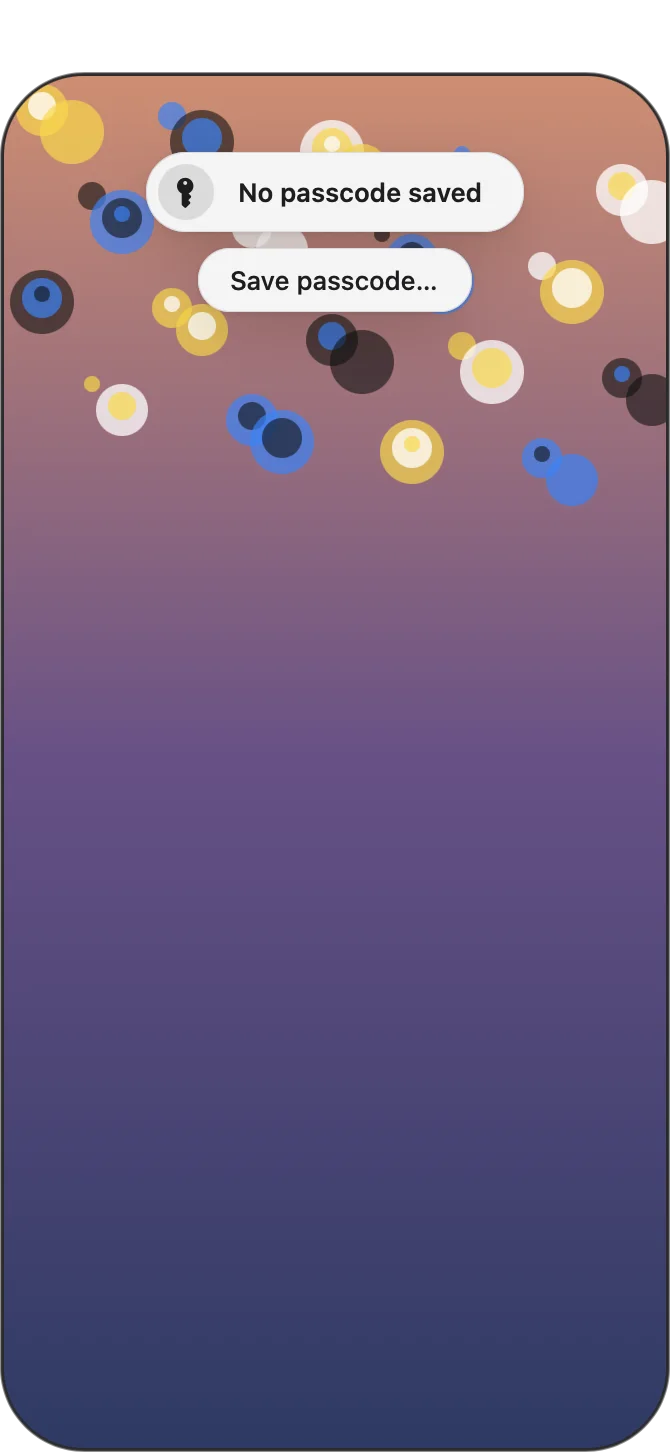
Save the passcode
- On the phone’s page, open the … menu and choose Unlock Settings…
- Enter the passcode and click Save passcode.
The passcode stays on this computer, stored securely. Aelin never sends it anywhere, and when another computer unlocks the phone, the typing happens here.
Unlock
When the phone is locked, the mirror window shows Unlock. Click it, and Aelin wakes the phone, types the passcode and checks that it worked, then tells you, for example Galaxy S20 5G unlocked.
Aelin stops to keep your phone safe
Phones lock you out after too many wrong passcodes, so Aelin is careful:
- It looks at the screen first, and types nothing if the passcode doesn’t fit (for example, letters when the phone wants numbers only).
- It stops if you touch the phone while it types.
- It stops after a few wrong tries and asks you to unlock the phone yourself once.
Please don’t test it with a wrong passcode on purpose.
From another computer
On the phone’s own computer, open Unlock Settings… and turn on Allow Unlock from other computers. Then the people you share the phone with can unlock it, and the passcode still stays on the phone’s computer.
Good to know
- An iPhone that has been locked for over an hour turns USB off. Unlock it by hand once, and then Aelin can unlock it again.
- On Android, a PIN screen shows black in the mirror, because Android hides it from capture. Unlock still works.